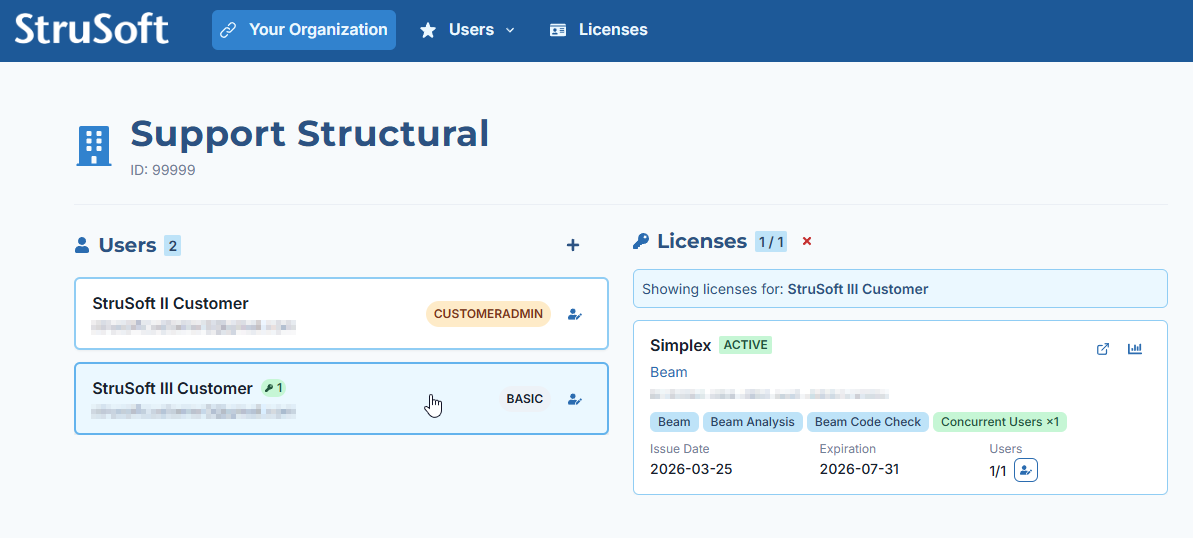
To administer users and licenses for your organization, start by signing in to the StruSoft Portal at:
To follow the steps in this guide, you need to be logged in with a Customer Admin account. This role gives you full access to add and manage users, assign licenses and view your organization’s details.
If you do not have Customer Admin permissions, please contact StruSoft Support to have the role assigned to your account.
1. Overview
As a Customer Admin, you can:
- Add new users
- Import multiple users via CSV
- Assign or remove licenses
- View organization information
- Reset user passwords
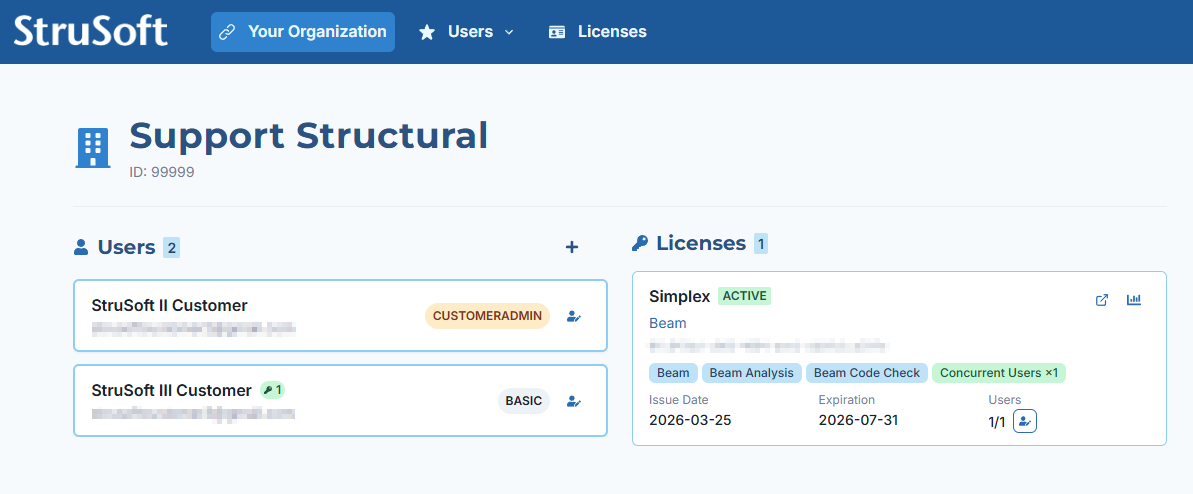
The Your Organization page provides an overview of all users and licenses, including license status, modules and expiration dates.
2. Adding a New User
Follow these steps:
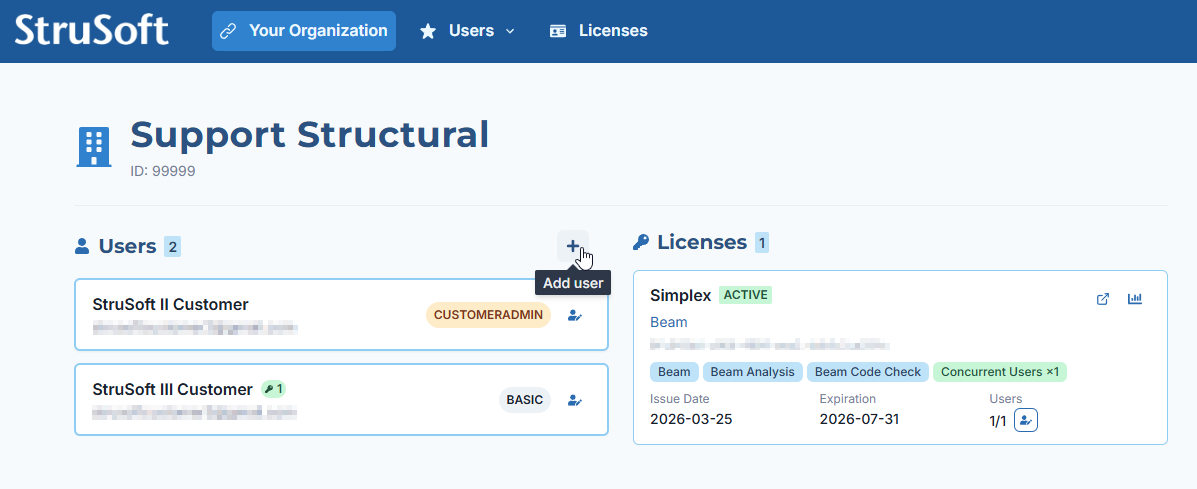
- Go to Users
- Click Add User(s)
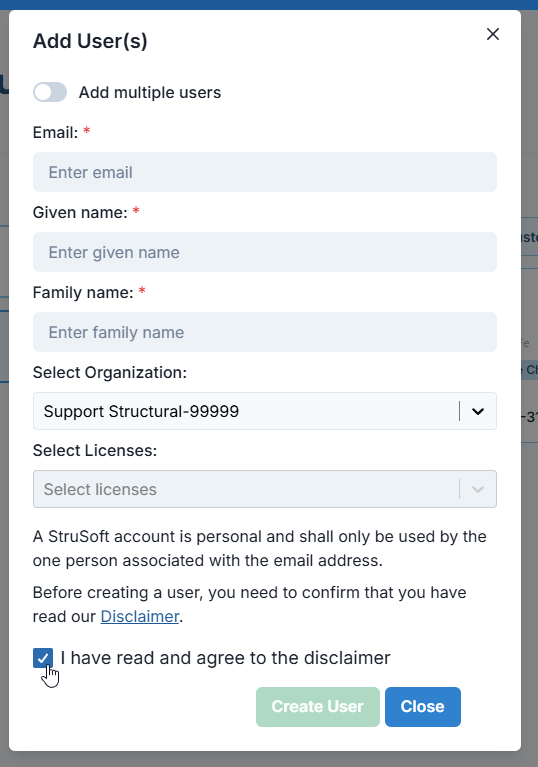
- Enter Email, Given name, and Family name
- Select the Organization
- Select Licenses
- Read and confirm the disclaimer
- Click Create User
3. Adding Multiple Users (CSV Import)
You can add multiple users at once using CSV import:
- Open Add User(s)
- Enable Add multiple users
- Upload a CSV file or paste CSV content
- Select Organization and Licenses
- Read and confirm the disclaimer
- Click Create Users
CSV format example:
email,given_name,family_name
john@example.com,John,Doe
jane@example.com,Jane,Smith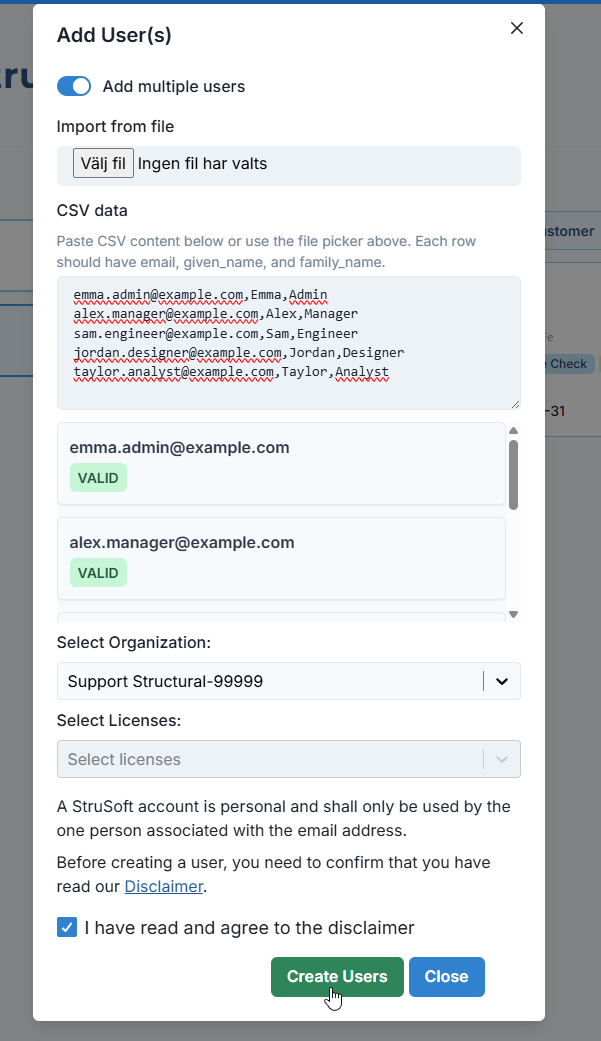
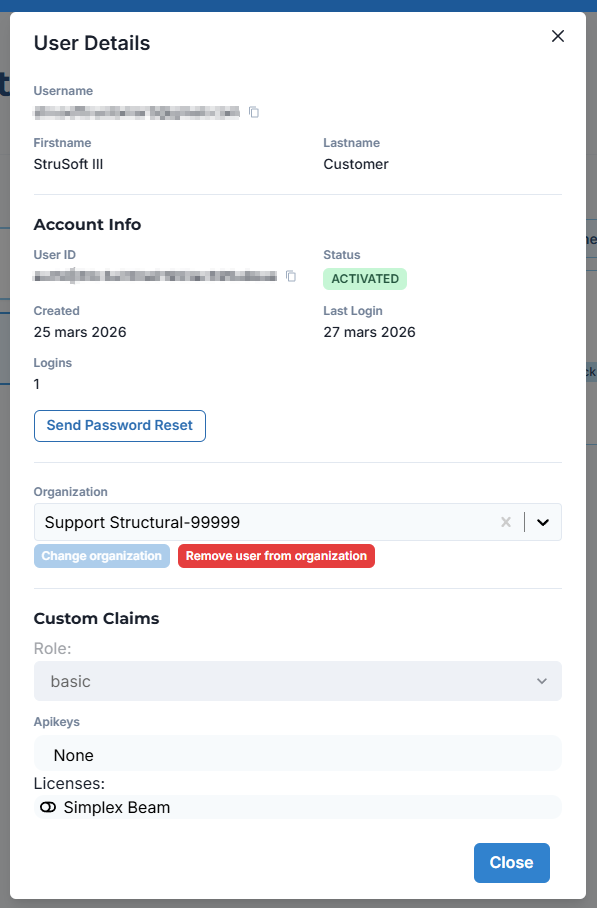
4. Viewing and Editing a User
Click Edit user to open User Details.

From here you can view account status, reset passwords and manage assigned licenses.
5. Viewing a User’s Licenses
Selecting a user filters the Licenses panel to show only the licenses assigned to that user.