
To administer users and licenses for your organization, start by signing in to the StruSoft Portal at:
To follow the steps in this guide, you need to be logged in with a Customer Admin account. This role gives you full access to add and manage users, assign licenses, and view your organization’s details.
If you do not have Customer Admin permissions, please contact StruSoft Support to have the role assigned to your account.
1. Overview
As a Customer Admin, you can:
• Add new users
• Import multiple users via CSV
• Assign or remove licenses
• View organization information
• Manage roles and access
• Reset user passwords
The Your Organization page provides an overview of all users and licenses, including license status, modules, concurrent users, and expiration dates.
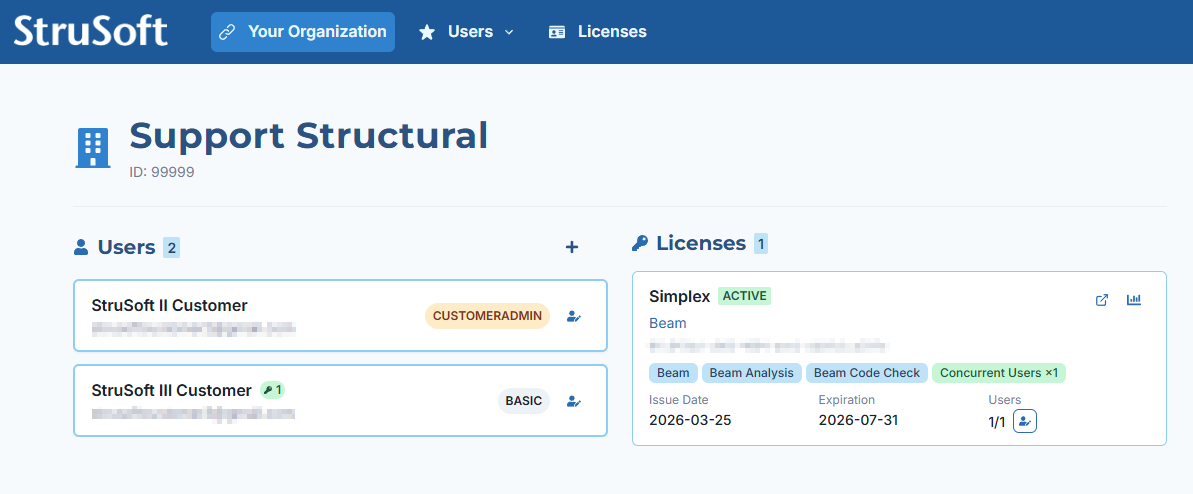
Figure 1: Your Organization overview showing users and licenses
2. Adding a New User
Follow these steps:
1. Go to Users
2. Click Add User(s)
3. Enter Email, Given name, and Family name
4. Select the Organization
5. Select Licenses
6. Confirm the disclaimer
7. Click Create User
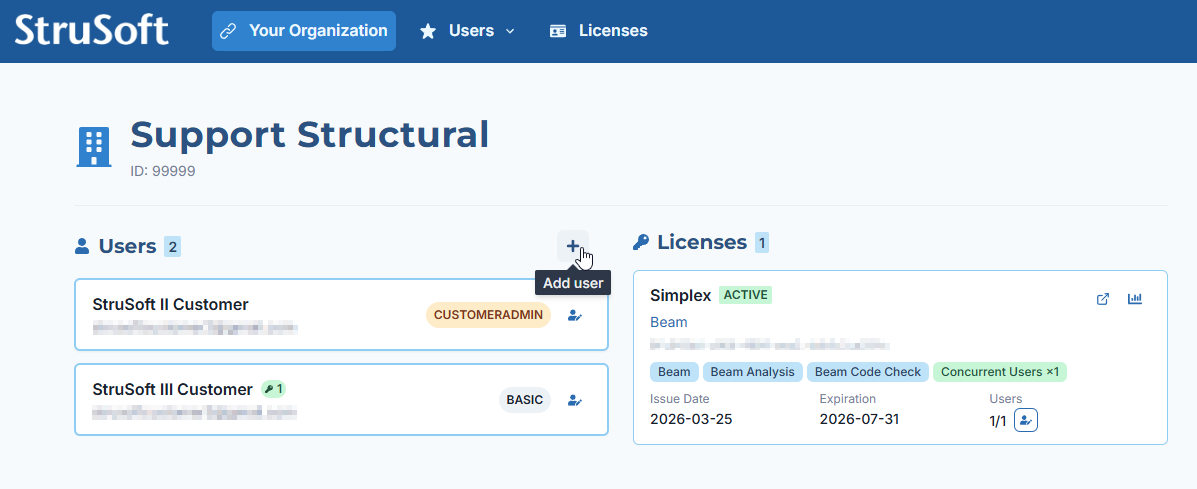 Figure 2: Add user button
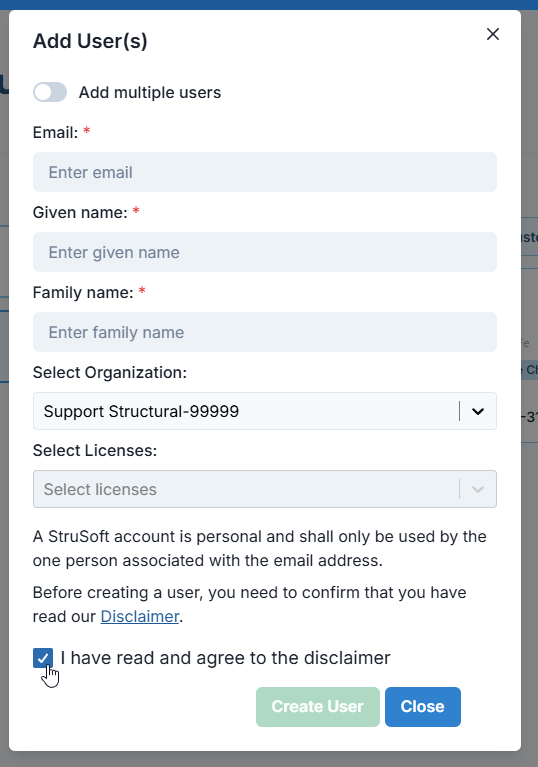 Figure 3: Add User window
3. Adding Multiple Users (CSV Import)
You can add multiple users at once using CSV import:
1. Open Add User(s)
2. Enable Add multiple users
3. Upload a CSV file or paste CSV content
4. Select Organization and Licenses
5. Confirm the disclaimer
6. Click Create Users
CSV format example:
email,given_name,family_name
john@example.com,John,Doe
jane@example.com,Jane,Smith
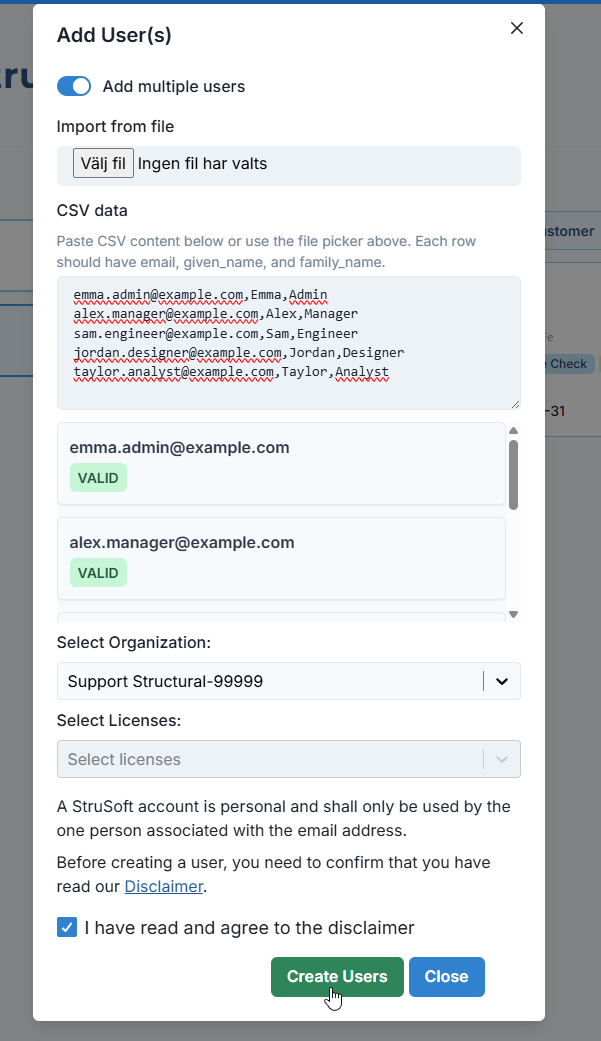
Figure 4: Add multiple users via CSV
4. Viewing and Editing a User
Click Edit user to open User Details.

Figure 5: Edit user button
From here you can view account status, reset passwords, change roles, move users between organizations, and manage assigned licenses.
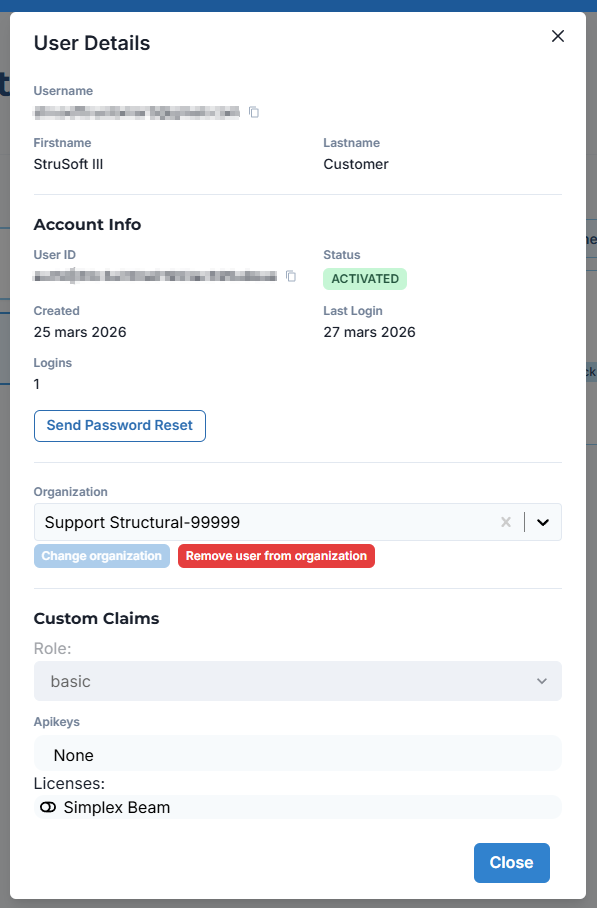
Figure 6: User Details panel
5. Viewing a User’s Licenses
Selecting a user filters the Licenses panel to show only the licenses assigned to that user.
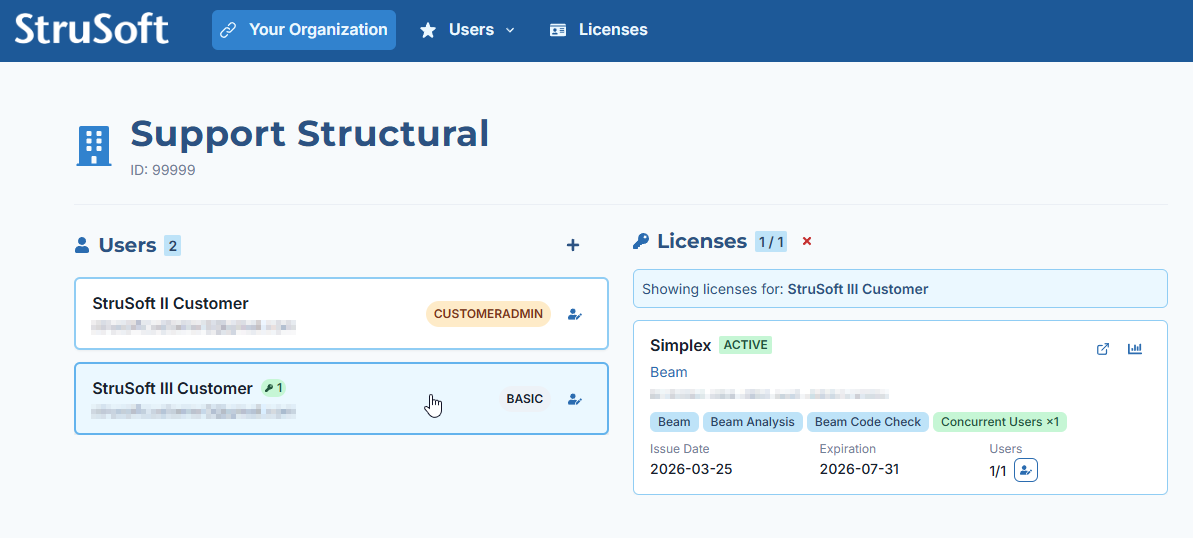
Figure 7: License view filtered by user